One PDF with all selected pages
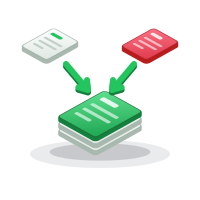
Choose this when you want a single, shorter document. The pages appear in the same order as your list. You can also change their order. For example, entering 5, 1-3 places page 5 first, followed by pages 1 to 3.
Keep only the pages you need. Pick pages, download.
 No upload
 No signup
 No watermark
 Free
 Files never leave your device
 Tap the pages you want
 Save one PDF or many
 Your PDF is ready
Pages are copied as they are, so quality does not change. Rename, preview or share each file above.

Split PDF helps you take out the pages you want and save them as a new PDF. Your original file stays unchanged, so you can use it again whenever you need to.
The tool works in your browser, directly on your device. Your PDF is not uploaded to our server. There is no account to create, no watermark on the result, and nothing to install. You can use it on a phone, tablet, or computer.
If the page numbers or range are not valid, the tool will show an error and display the total number of pages. You can then correct your entry and try again.

The tool counts pages from the beginning of the file. The first page is page 1, the second is page 2, and so on. It does not use the page number printed at the bottom of the document.
This difference matters when a PDF begins with a cover, contents page, or introduction. For example, the page printed as “1” might be the fourth page in the file. To select it, enter 4.
To avoid selecting the wrong page, check the page position shown by your PDF viewer rather than relying on the number printed on the page.
Choose this when you want a single, shorter document. The pages appear in the same order as your list. You can also change their order. For example, entering 5, 1-3 places page 5 first, followed by pages 1 to 3.
Choose this when you want several smaller documents. Each comma-separated part becomes its own file. The files use the original name with a part number added, making them easier to identify.
When your browser asks whether to allow multiple downloads, allow them for this site. Otherwise, it may save the first file but block the rest. On a phone, check the Downloads folder or your Files app.

If a classmate or colleague only needs one section of a long document, you can send those pages instead of the entire file.
You may need to send a signed page, an invoice summary, or a results table. Select that page and create a separate PDF.
A document may contain a cover sheet, blank pages, or information that does not belong in the copy you plan to share. Select only the pages you want included. The original remains untouched.
If several different papers were scanned into one PDF, split the file into sections to create a separate document for each paper.
Some email services and upload forms limit attachment size. Splitting a large PDF into smaller parts may help, provided the recipient accepts multiple files.
In the one-PDF option, enter page numbers in the order you want them to appear. For example, 10, 1-9 moves the last page of a ten-page document to the front.
1
1-5
2, 4, 6
1-10, 11-25, 26-40 — choose the separate-PDF option.
1-2, 4-10
10, 1-9
There is no shortcut for selecting all odd pages, all even pages, or every second page. Enter the page numbers you need, such as 1, 3, 5, 7.
Split PDF copies the pages you select. It does not redraw them or reduce their quality. If the original text could be selected, it should remain selectable in the new file. Images keep their original quality, and each page keeps its size and orientation.
Your original PDF is only read; it is not changed. Keep it until you have checked the new file.
A smaller page count does not always mean a much smaller file. Some PDFs share fonts, images, or other resources across many pages. A one-page extract from a document full of large images may therefore be bigger than you expect.

Open the original PDF first and note the page positions you want. This helps avoid confusion between printed page numbers and the actual positions in the file.
Use numbers, hyphens, and commas. A hyphen joins the first and last page in a range; a comma separates selections. Spaces are fine, but letters and other symbols are not.
If the document is important or very large, try extracting one page first. Open it to make sure the result looks right before doing the full job.
Give downloaded files clear names so you can recognise them later. Keep the original in a separate place and treat it as your master copy.
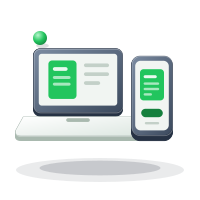
The page uses a simple, single-column layout with a large upload area and a wide button, making it easier to use on a small screen.
On Android, the upload box opens the file picker, where you can browse your phone storage and supported cloud apps. On iPhone or iPad, it opens the Files app.
Page ranges need a little extra care on a phone keyboard. Check your entry before selecting Split PDF. When the download finishes, look in your browser's downloads list, the Downloads folder, or the Files app. If you chose separate PDFs, look for several files with similar names.
Your PDF is processed by code running in your browser on your device. The document itself is not sent to Toolcloak, and we do not receive a copy of it. When you close the page, the working data held in your browser memory is cleared.
The page loads its PDF-processing code from a public software library host. That code runs on your device; your document is not sent to that host.
For sensitive documents, avoid using a public or shared computer where other people may be able to access downloaded files. Delete files you no longer need and keep your browser up to date.
If you are leaving certain pages out before sharing a document, open the new PDF and check every page. Splitting selects whole pages; it does not hide or remove private details from a page you keep.
The tool cannot read a file that requires a password to open. If you are authorised to do so, open it with the password and save an unprotected copy first.
A corrupted file may not open. The tool will show an error rather than create an incomplete result.
You can select whole pages, but you cannot change the text or images on a page.
Splitting does not reduce the quality or compress the file.
You choose pages by their positions in the document.
Your device does the processing. A large PDF may take longer or fail on an older phone with limited memory. If that happens, try a computer or split the job into smaller parts.

The two tools can work together. Imagine you have two long reports and need only the summary pages from each. First, use Split PDF to extract the pages you want from both reports. Then open Merge PDF and combine the two new files into one document.
You can also use the pair to fix a page that was scanned in the wrong place. Split the document into the pages before it, the misplaced page, and the pages after it. Then merge those parts in the correct order.
You have a twelve-page contract, but the bank asks only for page 12. Enter 12, choose one PDF, and select Split PDF. You will get a new file containing that page.
A 320-page textbook PDF has Chapter 6 on file pages 141 to 168. The printed page numbers say 121 to 148 because the file includes front matter. Enter 141-168, not 121-148.
A twenty-page scan has a cover on page 1 and a blank page on page 20. Enter 2-19 to keep the rest.
The first paper is on pages 1-2, the invoice is on pages 3-5, and the receipt is on pages 6-7. Enter 1-2, 3-5, 6-7 and choose separate PDFs.
To remove page 4 from a ten-page file, enter 1-3, 5-10 and choose one PDF. The new file will contain nine pages.
If page 10 of a report is the executive summary, enter 10, 1-9 and choose one PDF.
A single number selects one page. A hyphen selects every page between two numbers, including both ends. The first number in a range must be smaller than or equal to the second, so 5-3 is not valid.
A comma separates selections. You can add spaces around numbers, hyphens, and commas. Every page number must exist in the PDF. If the file has 20 pages, for example, page 21 cannot be selected.
In one-PDF mode, pages appear in exactly the order you enter. You can change the order or repeat a page. In separate-PDF mode, each comma-separated part becomes a different file.
To select odd pages in a ten-page file, enter 1, 3, 5, 7, 9. There are no automatic odd-page, even-page, or “all pages” shortcuts.
If you can, use a computer for very large documents because it usually has more available memory than a phone.
You can split a large document in stages: first create a few broad sections, then split those sections further. Smaller files are easier to process and check.
Try extracting one page before starting a large job. Scanned PDFs may take longer because every page is an image and the file can be much larger.
Open the new file and check every page. Make sure the pages you meant to include are there, and that no unwanted page has slipped in.
Remember that Split PDF selects whole pages. It does not edit the text on a page or remove private details that appear on a page you keep.
Keep the original separate and give the shorter copy a clear name. If the document is legally or financially important, check with the recipient that a partial copy is acceptable. Some organisations require the complete document.

In one-PDF mode, the browser downloads one file. In separate-PDF mode, it downloads several files, usually one after another. If the browser asks, allow multiple downloads for this site.
Use the page position shown by your PDF viewer, not the printed number. Check the page count before entering a range. Remember the comma between separate selections: write 1-3, 5, not 1-3 5.
Choose separate-PDF mode if you want one file for each part. If later downloads do not appear, check the browser's download notice and allow multiple downloads.
Before attaching a file to an email or form, check its name. The original and the new PDF may be next to each other in your Downloads folder.
Do not skip the final check. Opening the new file before sharing is the simplest way to catch a wrong page range or an unexpected result.

You can sometimes create a new PDF by printing selected pages, but this may change the layout or flatten parts of the document. Screenshots can reduce quality and make text harder to search. Desktop PDF editors may offer more features, but they often require installation and may cost money.
Some online tools upload documents to a server for processing. Split PDF works in your browser instead, does not require installation, and copies the selected pages without redrawing them.

Yes. It is free to use, with no sign-up, no watermark, and no usage limit set by us.
No. Your PDF is processed in your browser on your device. Toolcloak does not receive the file.
No. The original is only read. The tool creates a new file from the pages you select.
Use numbers, hyphens, and commas. For example: 2-4, 7, 9-12. Every page number must exist in the file.
Yes. Enter the page number, such as 6.
Yes. In one-PDF mode, the pages follow the order you enter. For example, 3, 1, 2 creates a file that starts with page 3.
Yes. In one-PDF mode, a page listed more than once will appear more than once in the new file.
You selected separate-PDF mode. Each part is saved as its own file. Allow multiple downloads if your browser asks.
The tool counts from the first physical page of the PDF. A cover or contents page can make the printed number different.
It may be password-protected, damaged, or saved by software the tool does not support. Try opening it in another PDF viewer. If it opens without a password, saving or printing a fresh PDF may help.
The pages are copied, but document-wide features such as the bookmark outline may not carry over. Check the result if those features matter to you.
Yes. It works in current mobile browsers. For very large files, a computer may be more reliable.
Creating new PDF files from selected pages of an existing PDF.
A group of pages written with two numbers and a hyphen, such as 3-7.
One item separated by a comma in the page list. In separate-PDF mode, each part becomes a file.
A page's position in the PDF, counted from the first page.
The number printed on the page itself. It may differ from the physical page number.
The PDF you open in the tool.
The new PDF created by the tool.

Check that you have opened the original and noted the correct page positions. Add the PDF and confirm its page count. Enter the pages using numbers, hyphens, and commas, then choose whether you want one file or separate files.
After selecting Split PDF, allow multiple downloads if your browser asks. Open each new file, check the pages, rename the files clearly, and keep the original safe.
Ready to split your PDF? Scroll up to the tool, add your file, enter the pages you need, and select Split PDF. If you later need to bring pages from different files together, you can use Merge PDF from the menu.